
Set up your work email and signature
Send and receive as your @kasanggayahan.com address from the Gmail you already use. About 15 minutes on a computer.
The orange boxes in each screenshot show exactly what to click.
PART 1 · YOUR WORK EMAIL
1Verify the email from Cloudflare
In your personal Gmail, open the email from Cloudflare called “Verify email address” and click the button. Without this, you will not receive work emails.
2Turn on 2-Step Verification
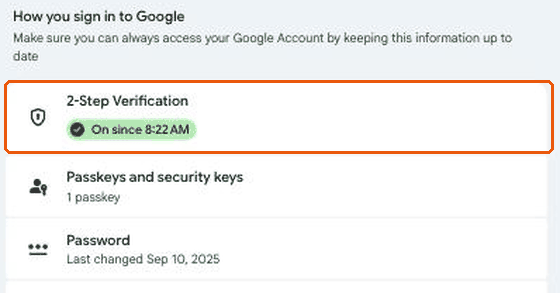
Go to myaccount.google.com/security and click 2-Step Verification. Skip this if it already says On.
3Create an App Password
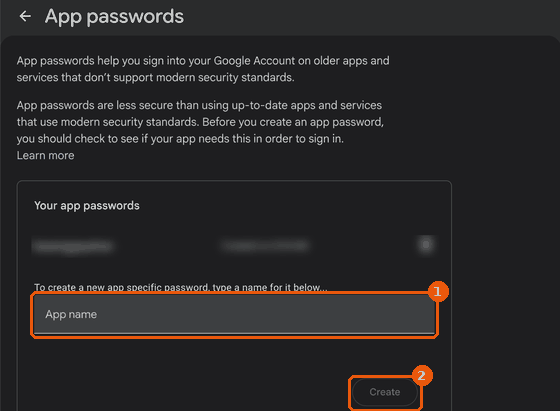
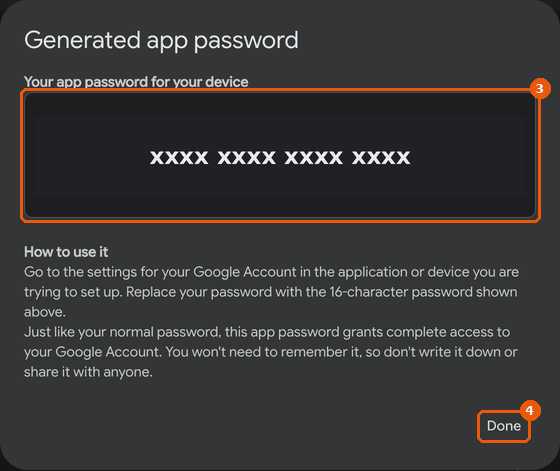
Go to myaccount.google.com/apppasswords. Type KTC email (1) and click Create (2). Copy the 16 letters (3), then click Done (4). You will paste them in Step 6.
Keep this password private. Do not send it to anyone.
4Open Gmail settings
In Gmail, click the gear icon (top right) → See all settings → Accounts and Import tab.

5Add your work address
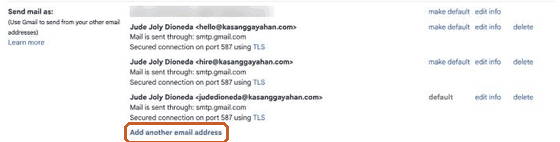
Under Send mail as, click Add another email address. Name: your full name. Email: your work address. Keep Treat as an alias checked, then click Next Step.
6Enter the sending settings
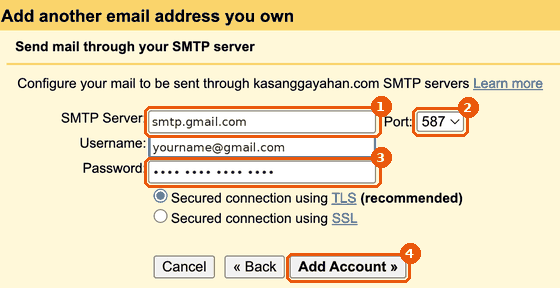
SMTP Server smtp.gmail.com (1), Port 587 (2), Username = your full personal Gmail address, Password = your App Password (3). Keep TLS and click Add Account (4). If Gmail fills in a Cloudflare server (route1/2/3.mx.cloudflare.net), replace it.
7Confirm the address
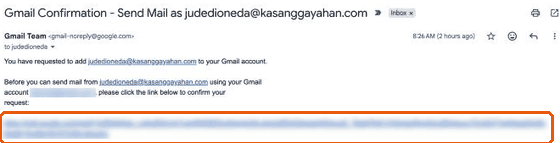
Open “Gmail Confirmation – Send Mail as …” and click the first link. Do not click the cancel link at the bottom.
8Make it your default
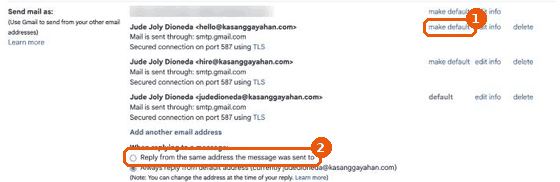
In Accounts and Import, click make default (1) next to your work address, then select Reply from the same address the message was sent to (2).
9Send a test email
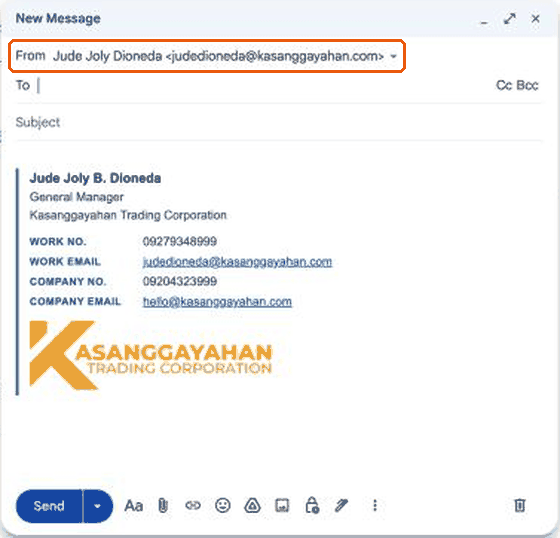
Click Compose. The From line should show your work address. Send a short test to Jude.
PART 2 · YOUR KTC SIGNATURE
10Add your KTC signature
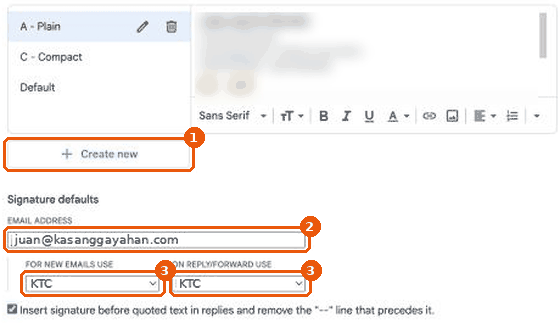
a. Gear icon → See all settings → General → Signature → Create new (1) → name it KTC.
b. Check your details below (taken from the company records), press Copy signature, then click in the Gmail signature box and paste (Ctrl+V, or ⌘+V on Mac). The logo comes with it.
c. Under Signature defaults, choose your work address (2) and set both boxes to KTC (3).
d. Scroll down and click Save Changes.
🔒 Your details come from the company records and can't be edited here. If something is wrong, reply to Jude.
Open this page from the link in your setup email so your signature appears here.
☐ Cloudflare email verified
☐ 2-Step Verification on
☐ App Password created
☐ Work address added
☐ Confirmation link clicked
☐ Set as default + test sent
☐ KTC signature saved as default